 PDF-DRM.com
How to Stop Copying, Printing, and Downloading Content from PDF Files using DRM
Last updated: July 10, 2026
Whether you are sharing confidential reports, training materials, or digital publications, controlling how recipients use your PDF documents is essential. PDF-DRM.com helps you secure your content by restricting copying, printing, and downloading while providing access through a protected shareable link. In this tutorial, you will learn how to upload a PDF, configure DRM permissions, and securely distribute your document while maintaining control over how it can be accessed and used.
Prerequisites
In order to take full advantage of the DRM features we are offering, you will need an account: Sign up for free or log in if you already have one.
Upload your PDF documents and set access permissions
First, you will need to upload a new PDF file:
- Log in to your account.
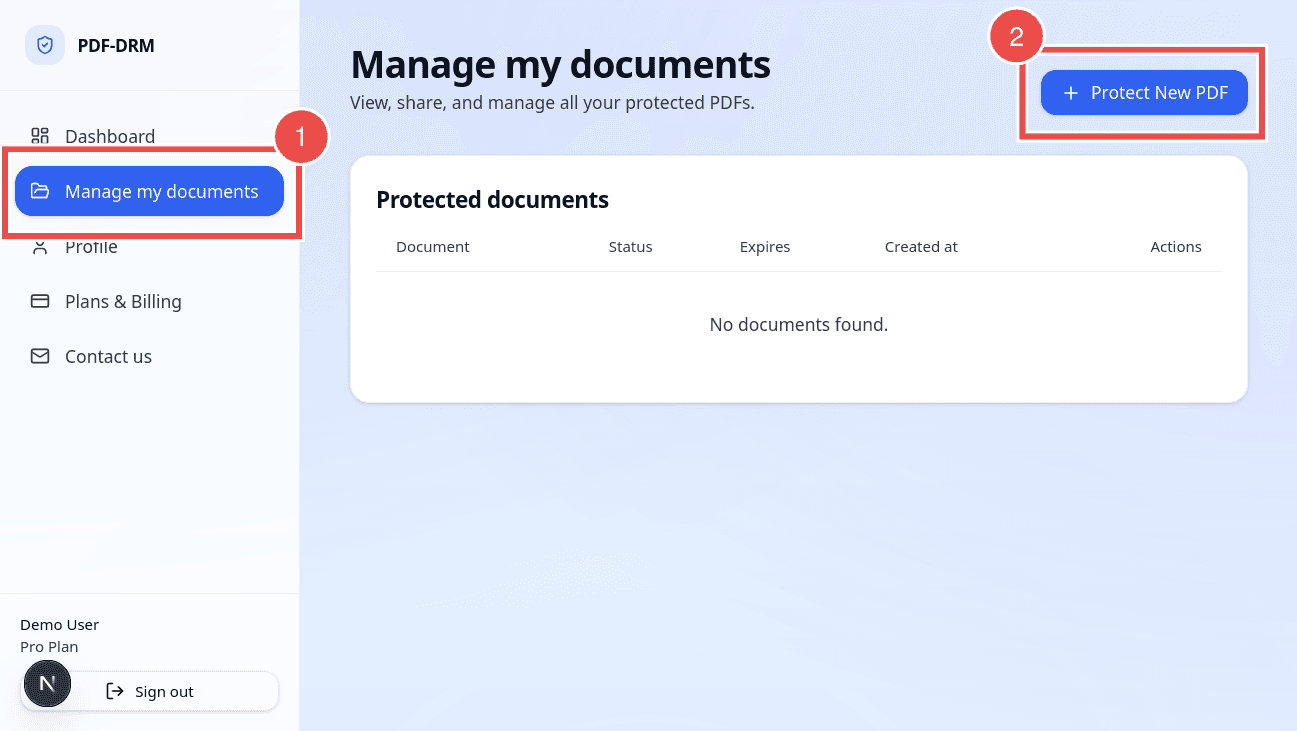
- Click on Manage My Documents on the left side of the navigation panel.
- Click on Protect New PDF.
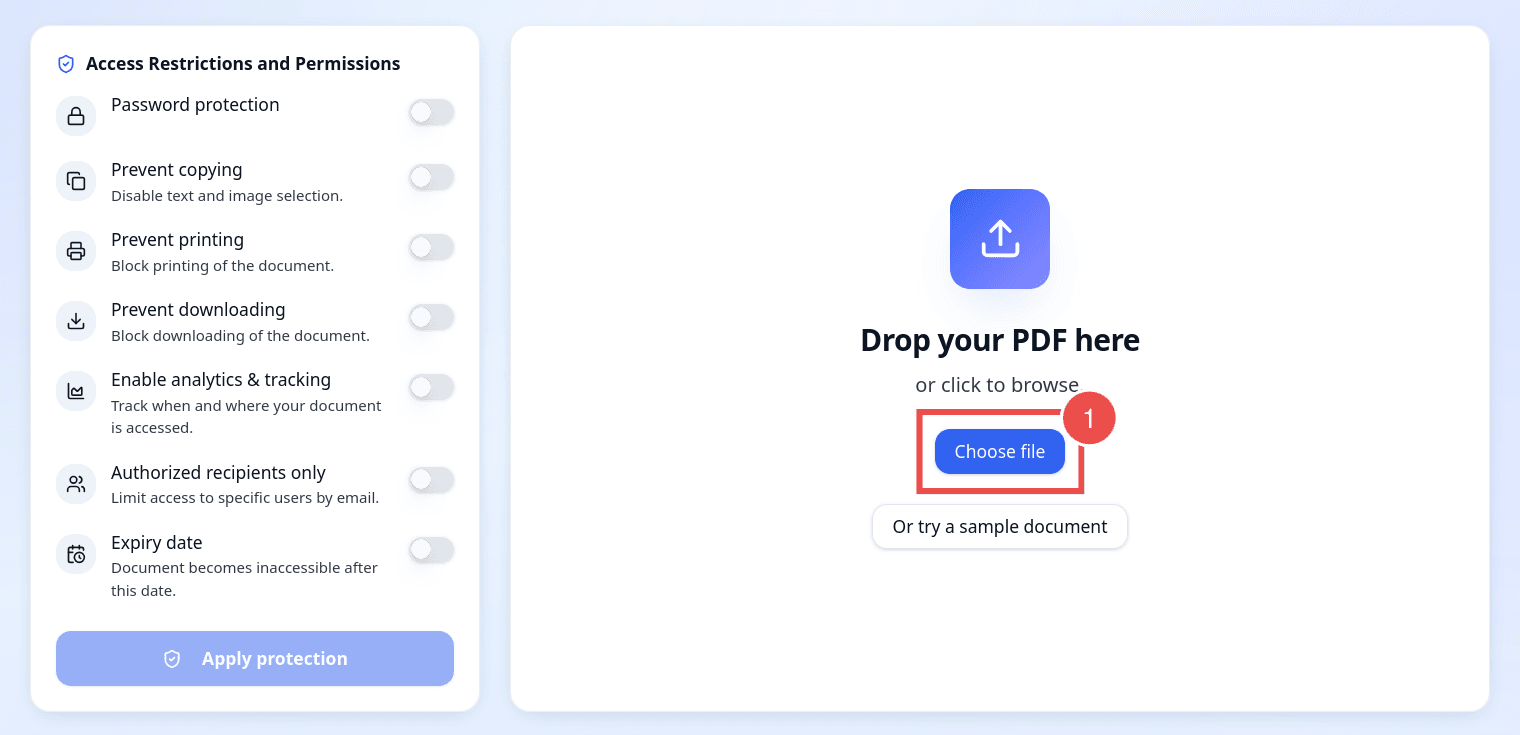
Next, you will be redirected to the upload page where you can upload and set access permissions for your new PDF file. The left part of the screen is the permissions panel where you can enable and disable permissions for you document, and the right part of the screen is a preview of your PDF.
- Click on Choose File or drag and drop your PDF in the upload area.Upload PDF
- Wait until the PDF is fully processed and displayed.
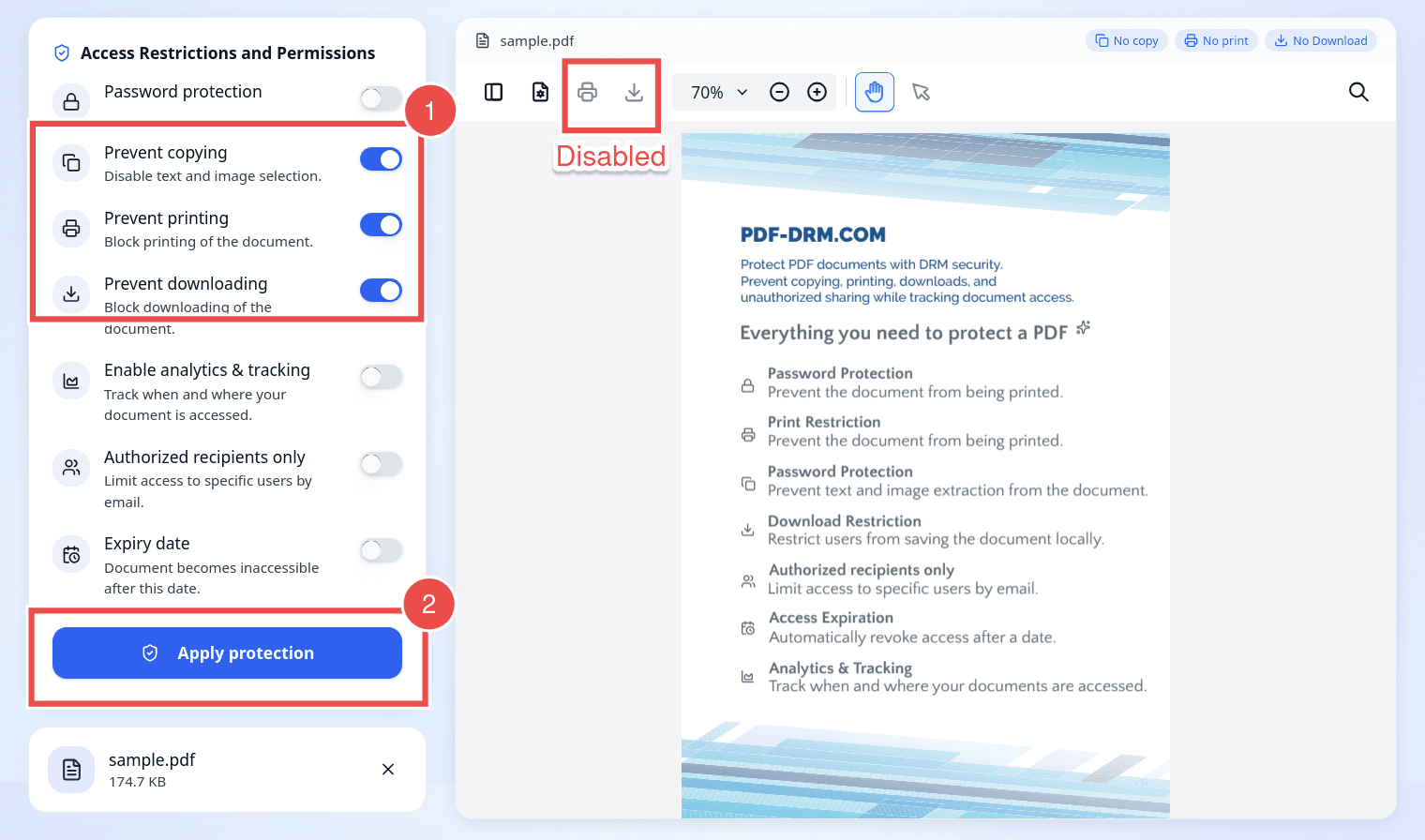
- Toggle Prevent copying switch to disable text and image copying.
This permission will restrict your PDF recipients from selecting text or images and copying them outside of the viewer. - Toggle Prevent printing switch to prevent recipients from printing your PDF.
This permission will restrict your PDF recipients from printing any page of your PDF file. - To stop the downloading action, toggle the Prevent downloading switch.
This permission will restrict your PDF recipients from exporting or saving the PDF file locally on their device. - The preview on the right side of the screen updates automatically to reflect the permissions you have selected. The print and download buttons will be grayed out and disabled, and the text selection and copying will also be disabled preventing the text from being extracted.
- Set an owner password. This password is required to apply the restrictions to your PDF file and is not shared with recipients.
- Optionally, set a user password. It is recommended to set a strong user password for your confidential documents. The PDF document will be encrypted using this password and your recipients must enter this password to open the PDF. You can read more about the difference between the two password in this article: PDF User Password vs Owner Password: What's the Difference?
Once you are happy with the access settings on your PDF file, click on Apply DRM Protection button located at the bottom-left corner of the page.
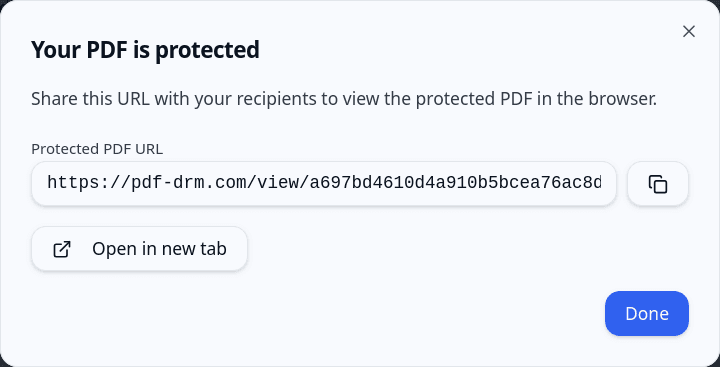
Your PDF is now protected with a secure shareable link. You can open the shareable link in a separate browser window or private browsing session and confirm that printing, downloading, and copying have been disabled according to your settings. Once you have verified the restrictions, you can share the link with your recipients, and the selected permissions will be enforced when they view the document.
FAQs
Do my PDF recipients need an account to view the document?
No, your recipients need only the shareable link from you to view the file.
If your PDF file is password encrypted, they will need the password to decrypt the file.
Which devices and browsers are supported?
Protected PDFs can be viewed on most modern desktop and mobile devices using supported web browsers, including Chrome, Edge, Firefox, and Safari. The configured DRM permissions are enforced within the secure web-based PDF viewer.
Can I stop access to a PDF after it has been shared?
Yes. You can revoke access by disabling the document or deleting it from your account. Once revoked, recipients will no longer be able to open the document using the shared link.
How can I update the permissions of a file after it has been shared?
Yes, you can set new permissions to your files by following these steps:
- In your account dashboard, click on Manage My Documents.
- Locate the file you would like to change its permissions.
- Click on Edit icon on the right side of the file.
- Toggle the permission switches on the left side of the screen.
- Apply the new changes by clicking on Apply DRM Protection button.
- The new permissions will be applied immediately to the same shareable link, and your recipients will be enforced with the new permissions.
How do I delete my files after they have been shared?
You can delete your files by following these steps:
- In your account dashboard, click on Manage My Documents.
- Locate the file you would like to delete.
- Click on Delete icon on the right side of the file.
- The file will be deleted immediately and will no longer be accessible by your recipients.
Does the shareable link expire?
On the Free plan, shareable links remain active for up to 3 days from the time they are created. On the Basic and Pro plans, shareable links do not expire unless you configure an expiration date. You can also revoke access at any time by deleting the document from your account.
Conclusion
PDF-DRM.com facilitates the security of your PDF documents by applying DRM protection. It restricts actions such as copying, printing, and downloading to ensure that there is no distribution of your sensitive documents. You can change and set the access permissions as needed using your account dashboard giving you full control over your documents even after they have been shared.
In the next tutorial, we will look into how to securely share PDF documents with specific users.