 PDF-DRM.com
Restrict Copying, Printing & Downloading Content from PDF Documents using DRM
Whether you're sharing confidential reports, training materials, or digital publications, controlling what recipients can do with your PDF documents is essential. PDF-DRM.com secures your content with DRM protection that restricts copying, printing, and downloading, while still giving recipients access through a protected shareable link. This tutorial walks through uploading a PDF, configuring DRM permissions, and distributing the document securely, so you keep control over how it is accessed and used even after it has been shared.
Prerequisites
To use PDF-DRM.com's DRM features, you will need an account: Sign up for free or log in if you already have one.
Upload your PDF documents and set access permissions
First, you will need to upload a new PDF file:
- Log in to your account.
- Click on Manage My Documents on the left side of the navigation panel.
- Click on Protect New PDF.
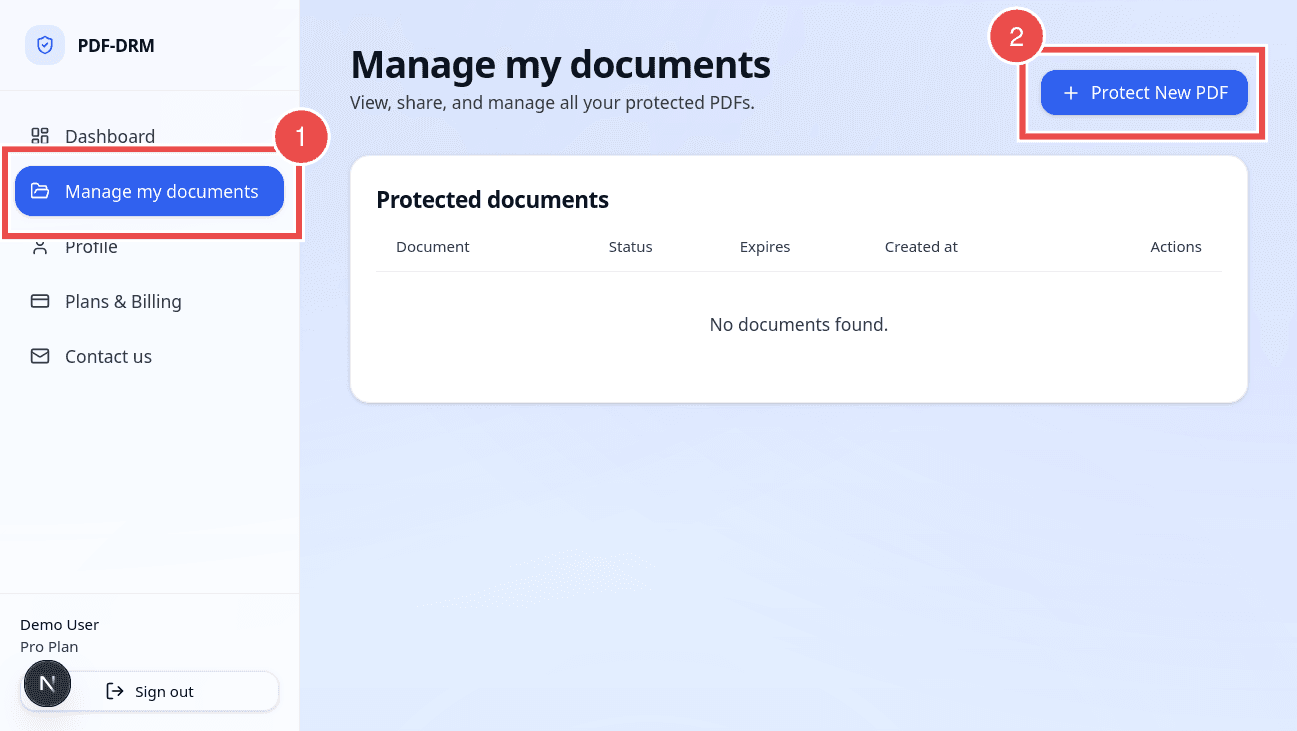
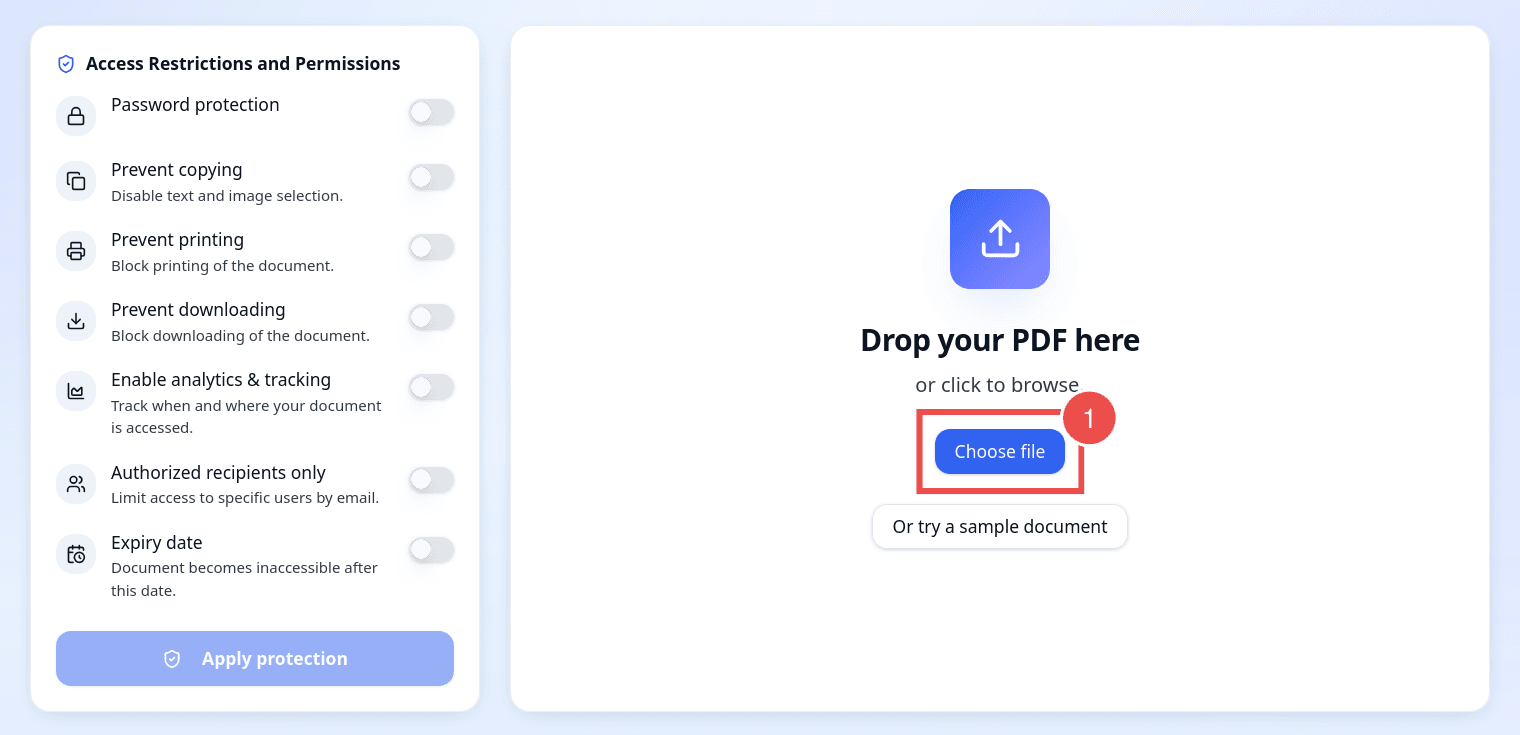
You will be redirected to the upload page, where you can upload your file and configure its access permissions. The left side of the screen is the permissions panel, used to enable and disable restrictions on your document; the right side shows a live preview of your PDF.
- Click on Choose File or drag and drop your PDF in the upload area.Upload PDF
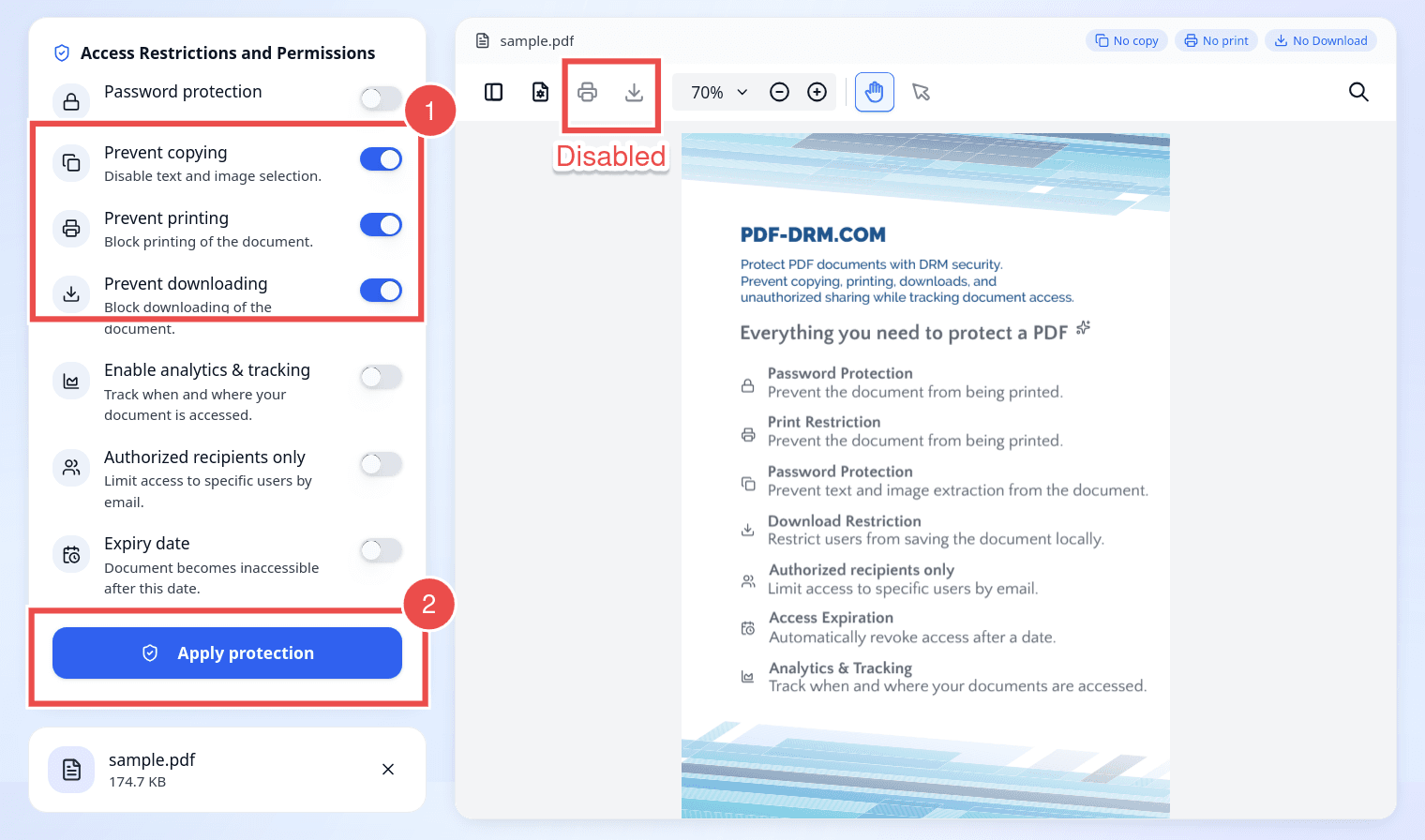
- Wait until the PDF is fully processed and displayed.
- Toggle the Prevent copying switch to disable text and image copying.
This restricts recipients from selecting text or images in the viewer and copying them elsewhere. - Toggle the Prevent printing switch to stop recipients from printing your PDF.
This restricts recipients from printing any page of the document. - To stop the downloading action, toggle the Prevent downloading switch.
This restricts recipients from exporting or saving the PDF locally on their device. - The preview on the right side of the screen updates automatically as you toggle permissions. The print and download buttons gray out and become disabled, and text selection and copying are also disabled so content can't be extracted.
- Set an owner password. This password is required to apply the restrictions to your PDF file and is not shared with recipients.
- Optionally, set a user password. This is recommended for confidential documents: PDF-DRM.com encrypts the file with AES-256 encryption (see how PDF encryption actually works) using this password, and recipients must enter it to open the PDF. You can read more about the difference between the two passwords in this article: PDF User Password vs Owner Password: What's the Difference?
Once you are satisfied with the access settings on your PDF file, click the Apply DRM Protection button located in the bottom-left corner of the page.
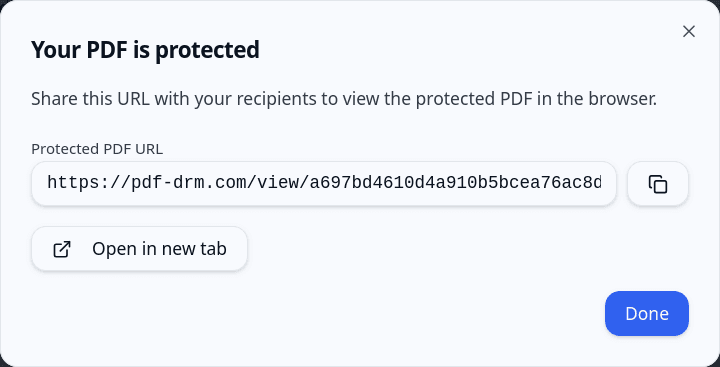
Your PDF is now protected with a secure shareable link. Recipients open it directly in PDF-DRM.com's browser-based PDF viewer, with no app or plugin required. Open the link yourself in a separate browser window or private browsing session and confirm that printing, downloading, and copying have been disabled according to your settings. Once you have verified the restrictions, share the link with your recipients, and the selected permissions will be enforced every time they view the document.
FAQs
Do my PDF recipients need an account to view the document?
No, your recipients need only the shareable link from you to view the file.
If your PDF file is password encrypted, they will need the password to decrypt the file.
Which devices and browsers are supported?
Protected PDFs open in PDF-DRM.com's browser-based PDF viewer, which works on most modern desktop and mobile browsers, including Chrome, Edge, Firefox, and Safari. Your configured DRM permissions are enforced directly within the viewer.
Can I stop access to a PDF after it has been shared?
Yes. You can revoke access by disabling the document or deleting it from your account. Once revoked, recipients will no longer be able to open the document using the shared link.
How can I update the permissions of a file after it has been shared?
Yes, you can update the permissions on a file at any time by following these steps:
- In your account dashboard, click on Manage My Documents.
- Locate the file whose permissions you would like to change.
- Click the Edit icon on the right side of the file.
- Toggle the permission switches on the left side of the screen.
- Apply the new changes by clicking on Apply DRM Protection.
- The new permissions are applied immediately to the same shareable link, and your recipients will be subject to the updated permissions.
How do I delete my files after they have been shared?
You can delete your files by following these steps:
- In your account dashboard, click on Manage My Documents.
- Locate the file you would like to delete.
- Click the Delete icon on the right side of the file.
- The file is deleted immediately and will no longer be accessible to your recipients.
Does the shareable link expire?
On the Free plan, shareable links remain active for up to 3 days after they are created. On the Basic and Pro plans, shareable links do not expire unless you configure an expiration date yourself, and you can revoke access at any time by deleting the document from your account.
Conclusion
PDF-DRM.com makes it straightforward to secure your PDF documents with DRM protection, restricting copying, printing, and downloading to reduce the risk of your sensitive content being redistributed. Permissions can be updated or revoked at any time from your account dashboard, giving you full control over your documents even after they have been shared. For an added layer of accountability, consider pairing these restrictions with dynamic watermarking, which overlays the viewer's details on every page of the document.
In the next tutorial, we will look into how to securely share PDF documents with specific users. If you still have questions about how DRM protection works, check out Common Questions About Protecting PDF Documents Using DRM.