 PDF-DRM.com
Protect sensitive documents with Dynamic Watermarking
Last updated: June 25, 2026
What is Dynamic Watermarking
Dynamic watermarking is a document security feature that applies a dynamic text overlay containing viewer-specific details, such as the user's email address or access date and time, to every page of a document during viewing. Each watermark is unique to the viewer making shared content traceable to individual viewers.
When should you use Dynamic Watermarking?
You should use dynamic watermarking when sharing sensitive or confidential documents. It is particularly effective in deterring unauthorized disclosure through screenshots, photographs, or screen recordings, as it provides accountability and traceability in case a leak occurs.
Who uses Dynamic Watermarking?
Dynamic watermarking is widely used by organizations or professionals handling confidential information, including those involved in virtual data rooms, due diligence processes, mergers and acquisitions, fundraising activities, legal transactions, and other high-security business workflows.
How Does It Work?
Prerequisites
To use the Dynamic Watermarking feature on PDF-DRM.com you will need:
- An account with the Pro plan activated.
- A PDF document uploaded to your account. If you have not uploaded a document yet, refer to our previous tutorial for step-by-step instructions.
Steps
To enable dynamic watermarking for a PDF document, follow these steps:
- Log in to your account.
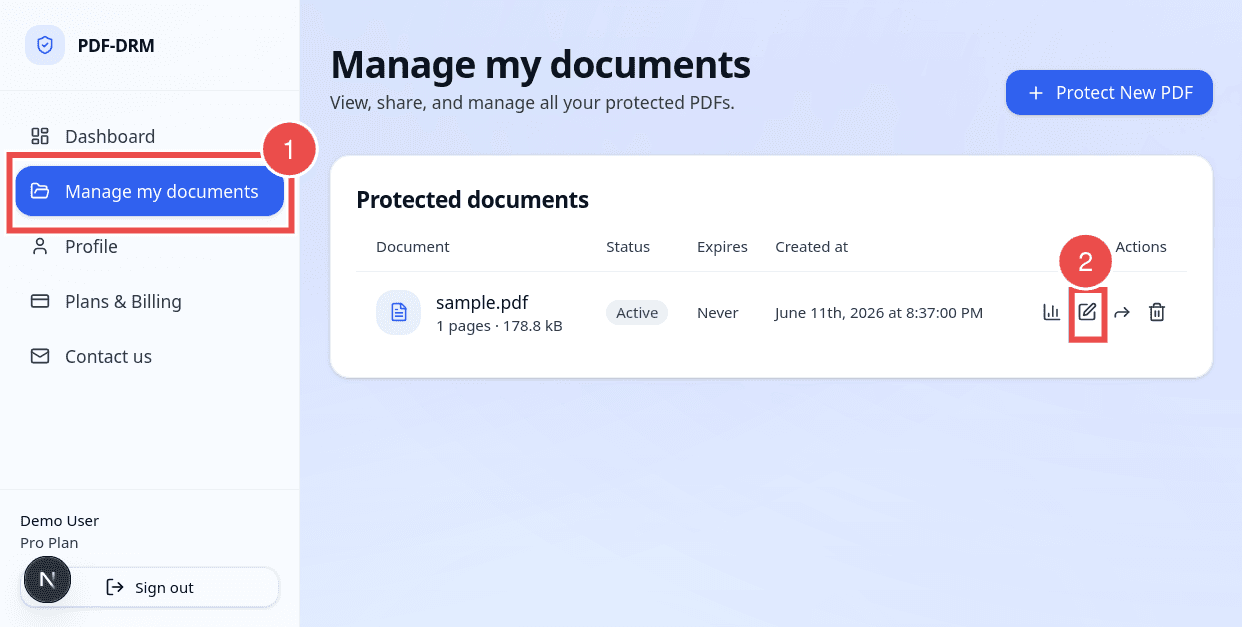
- Click on Manage My Documents on the left side of the navigation panel.
- Click on the Edit icon for the PDF document you want to protect with dynamic watermarking.
Next, you will be redirected to the document settings page.
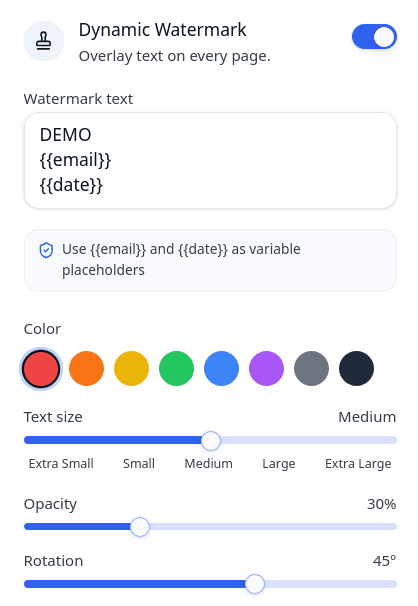
- Toggle the Dynamic Watermarking switch to enable the feature.
- In the text box provided, enter the watermark text that will appear on every page.
- You can customize your watermark text with variables like:
- {{ email }} - displays the viewer's email address.
- {{ date }} - displays the current date.
- Adjust the font size, color, text rotation, and opacity as needed.
- The preview area on the right will automatically update to reflect your changes.
Once you have finished configuring the settings, click on Apply DRM Protection button located at the bottom-left corner of the page to generate the shareable link.
Your PDF is now protected with dynamic watermarking. You can share the link with authorized viewers. When they open the document, the watermark overlay will be applied to every page they view.
FAQs
What is the difference between dynamic watermarking and static watermarking?
Static watermarking applies the same text or image to every copy of a document, regardless of who views it. It remains unchanged across all users and sessions.
Dynamic watermarking, on the other hand, generates a unique watermark for each viewer and viewing session. It can include viewer specific information such as email address, IP address, or access time, making each copy traceable to an individual user.
Can I use the {{ email }} placeholder if Authorized Recipients is not enabled?
No. The {{ email }} placeholder can only be used when Authorized Recipients is enabled, because the system must have a verified email address for each viewer in order to populate the watermark dynamically. Without Authorized Recipients, the viewer's identity is not reliably available.
It is recommended to enable Authorized Recipients if you plan to use the variable field {{ email }}.
Does dynamic watermarking work with printed or exported documents?
Yes. Printed and exported documents retain the watermark information that was captured when the print or export action occurred. However, unlike documents viewed in the web viewer, the watermark in printed or exported copies becomes static and is no longer updated dynamically.
Why should printing and exporting be restricted when using dynamic watermarking?
Because dynamic watermarking is most effective when the document is viewed within the web viewer. In this case, the watermark is generated in real time using the viewer's specific information. When a document is printed or exported, the watermark is no longer updated dynamically. Thus it is recommended to restrict printing and exporting actions when using dynamic watermarking. This helps ensure that watermark information remains current and up to date.
Can I disable or change Dynamic Watermarking after sharing the document?
Yes. You can disable or modify Dynamic Watermarking settings at any time, even after the document has been shared. Any changes you make will apply to future views of the document. However, users who have already accessed the document will continue to see the watermark settings that were active during their viewing session.